Print Tools
Understanding DPI and print resolution: a simple guide
By Jobi · Creator & Maintainer, PrintablesWorld · Updated 2026-07-25 · 5 min read
DPI is the number people check when a print comes out blurry, and it is widely misunderstood. Largely because on its own it means nothing at all. A free DPI calculator does the arithmetic; this explains what it is doing.
What DPI actually means
Dots per inch: how many dots of ink are placed in one inch of paper.
The critical point is that DPI is meaningless without a physical size. An image is not "300 DPI" in the abstract. It has a pixel count, and the DPI depends entirely on how large you print it.
A 1200×1200 pixel image printed at 4 inches wide is 300 DPI. The same file printed at 12 inches wide is 100 DPI and will look soft. Nothing about the file changed; only the size did.
This is why "is this image high resolution?" cannot be answered without asking how big it is being printed.
DPI vs PPI
Strictly, they describe different things.
PPI (pixels per inch) describes the image. How many pixels fall in each inch of the printed result. DPI (dots per inch) describes the printer. How many ink dots it physically lays down.
They are not the same because most printers use several ink dots to reproduce one pixel's colour. That is why an inkjet advertising 4800 DPI is not claiming to print 4800 pixels per inch.
In everyday use the two get used interchangeably, and for choosing an image size that is harmless. Just be aware that a printer's DPI spec and your image's requirement are describing different quantities.
The one calculation that matters
Pixels ÷ inches = PPI.
Or the other way round: desired inches × 300 = pixels needed.
Worked examples:
- A 6×4 inch photo at 300 DPI needs 1800×1200 pixels.
- An A4 page (roughly 8.27×11.69 inches) at 300 DPI needs about 2480×3508 pixels.
- An 1000×1000 pixel image printed 10 inches wide gives 100 DPI, visibly soft.
For metric, divide the millimetres by 25.4 to get inches first. That is the entire method, and it is what the calculator automates.
Why 300 is the standard
300 DPI is roughly the point at which the human eye stops resolving individual dots at normal reading distance, so more detail is not visibly better. It became the print industry default for that reason.
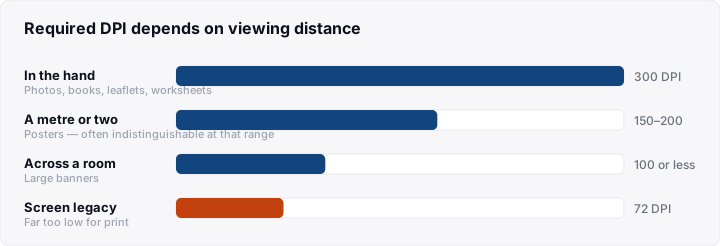
It is not a universal requirement, and viewing distance is what actually governs it:
- 300 DPI: anything held in the hand: photos, books, leaflets, worksheets.
- 150–200 DPI: posters viewed from a metre or two. Often indistinguishable at that distance.
- 100 DPI or less: large banners seen from across a room.
- 72 DPI: a legacy screen convention; far too low for print.
A billboard may be printed at 20 DPI and look perfect, because nobody stands a foot away from it.
Why enlarging a small image does not work
Increasing an image's pixel dimensions in software cannot add detail that was never captured. The software interpolates, it invents plausible pixels between the existing ones, which produces a larger, softer image rather than a sharper one.
Setting the DPI field in image software without resampling changes nothing about the file either; it only changes the size at which it will print. A 600×600 image tagged "300 DPI" is still a 600×600 image and will print two inches wide.
AI upscalers do better than older methods by generating detail that plausibly could have been there, and they are genuinely useful. But they are inventing, not recovering. For anything where accuracy matters, the answer is still to source a larger original.
Practical rules
- Start from the printed size and work back to the pixels you need.
- Photograph or scan larger than you think. Downsizing is lossless in effect; upsizing is not.
- Screenshots are usually too small for print. They are captured at screen resolution.
- Vector formats (SVG, PDF) have no DPI, because they are drawn from instructions rather than pixels. Logos and diagrams should be vector wherever possible; they print sharply at any size.
- Check the source before designing around it. Discovering the image is too small after the layout is finished is the expensive order to do this in.
Frequently asked questions
Is 72 DPI ever enough?
Not for print at normal viewing distance. It is a screen convention, and an image saved at 72 DPI is not inherently bad. It simply means the tag says 72, and what matters is the pixel count against your printed size.
Can I just change the DPI setting in an image editor?
Changing the DPI field without resampling only changes the intended print size, not the detail. Changing it with resampling invents pixels. Neither recovers detail that was not captured.
What resolution do I need for an A4 poster?
About 2480×3508 pixels for 300 DPI. If it will be viewed from a couple of metres, 150 DPI, roughly 1240×1754, is usually fine.
Why does my print look worse than my screen?
Several reasons beyond resolution: screens are backlit and paper is not, screens use RGB while printers use CMYK so some colours cannot be reproduced, and paper type affects sharpness and colour considerably.
Before you print
Decide the physical size first, multiply by 300, and check your image has that many pixels. Before you build the layout around it. Use the DPI calculator for the arithmetic and the resolution checker to confirm a specific image is big enough for the size you want.
Related tools
DPI Calculator
Calculate DPI, print size, or required pixels for sharp, print-ready images.
Image Resolution Checker
Check whether your image has enough pixels for a sharp print at any target size.
Paper Sizes Calculator
Compare paper sizes and convert dimensions to pixels for accurate print design at any resolution.
Continue reading