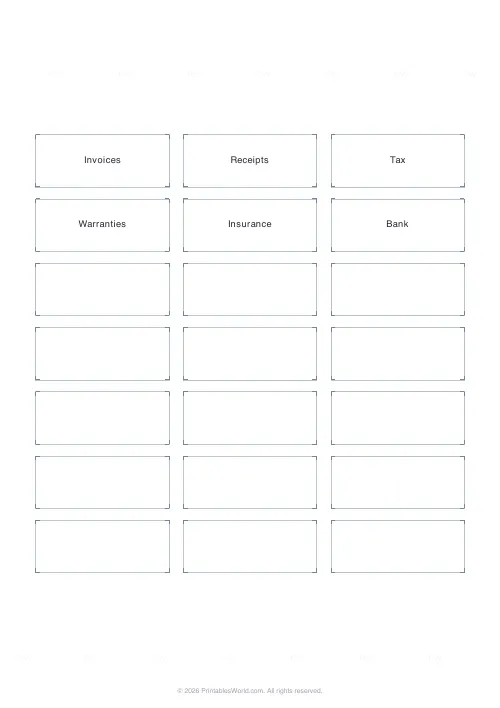
What this tool does
Make tidy labels for file folders, binders, boxes, and shelves. Pick a label layout, type one caption per line, and the sheet fills left to right. Cut guides and centred, auto-sized text make a clean print every time. Or leave labels blank to write on by hand.
People also used
Blank Calendar Grid
An undated month calendar to fill in by hand.
Lined Paper Generator
Generate custom ruled paper PDFs with adjustable line spacing, colours, margins, and primary ruling styles.
Graph Paper Generator
Create custom graph paper PDFs with square or rectangular grids, dot styles, and axis numbering.
Feedback
Spotted something off with this tool?
Printable File Folder and Binder Spine Labels
A fast, free way to print clean labels for hanging files, manila folders, ring binders, archive boxes, and shelf edges. Choose a label layout, type a short caption for each label, and the generator lays them out in a neat grid with centred, auto-sized text and faint cut guides so you can trim the sheet straight. The result is a single-page PDF in A4 or US Letter, ready to print at full scale on any home or office printer.
Hand-written labels smudge, fade, and look inconsistent across a filing cabinet. Printed labels keep every folder and binder reading the same way, which makes a shelf or drawer far quicker to scan. Whether you are setting up a home filing system, organising a classroom, or labelling project binders at work, a printable label sheet is the tidiest option.
Choose the right label layout
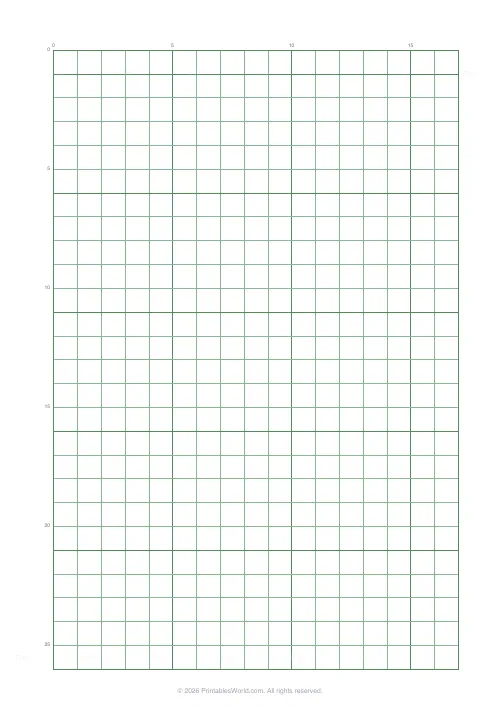
The tool offers four layouts that follow common label-sheet templates closely enough to trim cleanly:
- File folder: narrow, tab-style labels, three across, for the cut tabs on hanging files and manila folders.
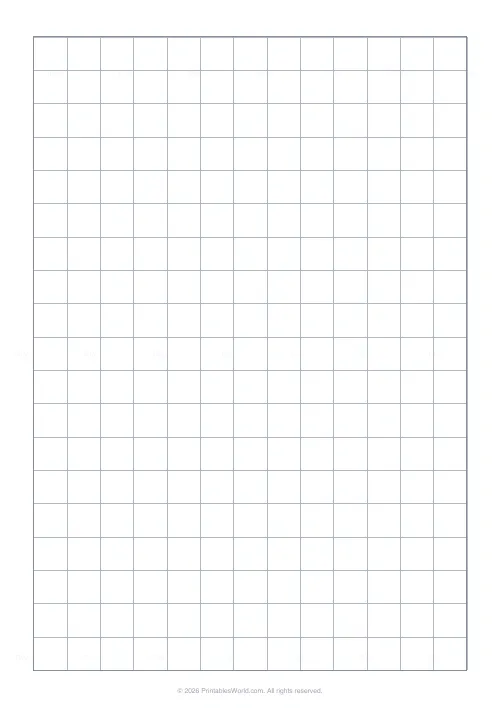
- Binder spine: wide, tall labels, two across, sized to slip into the spine pocket of a ring binder or to stick on the spine directly.
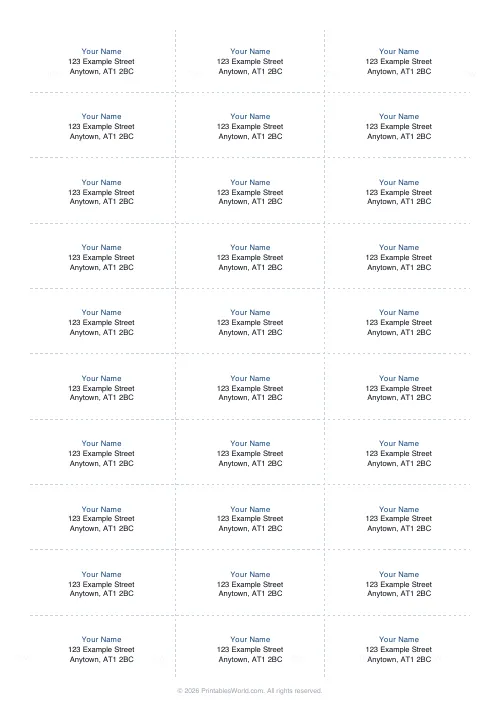
- Address: a dense grid of general multipurpose labels, three across, for envelopes, jars, name tags, and small boxes.
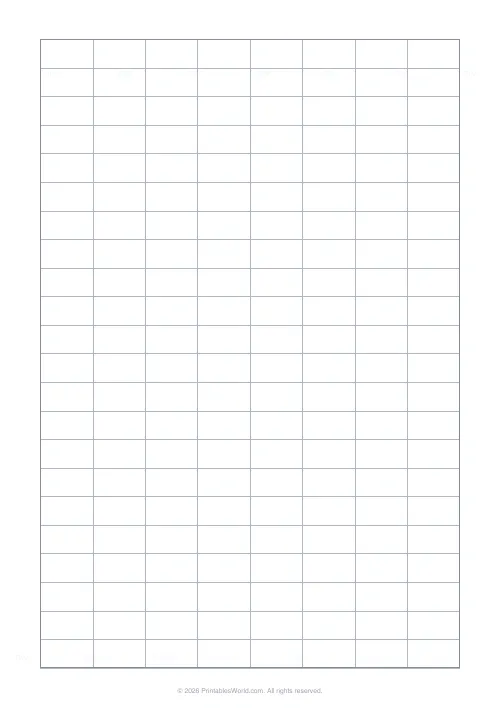
- Large: big two-across labels for shipping cartons, storage tubs, and shelf fronts.
Each layout shows how many labels fit on a sheet, so you know exactly how many captions to type.
How to make a label sheet
- Pick the label type that matches what you are labelling.
- Type one caption per line in the captions box. The first line fills the first label, the second the next, and so on.
- Leave any line blank to print an empty label you can write on by hand.
- Tick "Repeat the first caption" to fill an entire sheet with the same label (handy for return-address or inventory labels).
- Choose your paper size, then download and print at 100% scale.
- Trim along the faint cut guides and stick the labels in place.
What is under your control
- Label layout: file-folder tabs, binder spines, address grid, or large labels
- A caption for every label, typed one per line
- Repeat a single caption across the whole sheet
- Cut guides on or off for a clean or borderless print
- Bold or regular caption text
- Paper size: A4, US Letter, or US Legal
Captions are centred in each label and automatically shrink to fit, so long titles like "Insurance & Warranties 2024–2026" still sit neatly inside the cell without overflowing.
Who this tool is for
Home organisers
Label a household filing system in one go, bills, receipts, tax, medical, school, warranties, so paperwork lands in the right folder every time.
Teachers and offices
Caption binders by subject, term, or project and keep a whole shelf reading consistently. Reprint a single label without redoing the rest.
Small businesses
Run off product, inventory, or shipping labels using the repeat option, then trim and apply.
Tips for clean, durable labels
- Print at 100% scale with "fit to page" turned off so the cells line up with pre-cut label stock.
- If you are using blank paper, cut along the guides with a craft knife and steel rule for the straightest edge.
- Keep captions short. A few words read far better on a folder tab than a full sentence.
- For binders that get heavy handling, cover finished labels with clear tape or laminate to stop the ink wearing.
- Use the same capitalisation style across every label so the finished drawer looks uniform.
Designed for A4 and US Letter printing
The label grid is centred on the page and clamped so it always fits inside the printable area. It never clips at the edges. On A4 and US Letter the same number of labels print; only the surrounding margins differ slightly. Print at full scale to keep the cell sizes accurate if you are aligning to pre-printed label sheets.
Related printable paper templates
You may also find these related printable-paper tools useful:
FAQs
Quick answers
What label sheets do these fit?
The layouts follow common Avery-style templates. File-folder tabs, binder spines, address labels, and large labels. Print at 100% scale to align with pre-cut stock, or trim plain paper along the cut guides.
Can I leave some labels blank?
Yes. Any line you leave empty prints an empty label with just its cut guide, so you can write on it by hand.
How do I fill a whole sheet with the same label?
Type the caption on the first line and tick "Repeat the first caption on every label".
Will long captions still fit?
Yes. Captions are centred and automatically shrink to fit the label, so longer titles stay inside the cell.
Related tools
Blank Calendar Grid
An undated month calendar to fill in by hand.
Lined Paper Generator
Generate custom ruled paper PDFs with adjustable line spacing, colours, margins, and primary ruling styles.
Graph Paper Generator
Create custom graph paper PDFs with square or rectangular grids, dot styles, and axis numbering.
Address & Name Labels
Printable address label and name tag sheets in common Avery layouts.