What this tool does
Works out how many copies of an item fit on a sheet. Enter the item size, pick the paper, set a margin and a gap; it checks both orientations and reports the better one.
People also used
PDF Page Imposition Guide
Plan signature order for booklet printing. Page count and signature size in, table out.
Print Scaling Calculator
Scale any document to fit your chosen paper size.
Paper Sizes Calculator
Compare paper sizes and convert dimensions to pixels for accurate print design at any resolution.
Feedback
Spotted something off with this tool?
Item in, layout out
Give it the width and height of one item. Choose the paper — A4, A3, A5, US Letter — then set the page margin and the gap you want between items.
It returns the columns, the rows, the total. It also tries the item rotated, and reports whichever way round fits more.
Rotation is where the wins are
The calculation people do in their heads, and get wrong.
A business card at 85 by 55 on A4 fits a certain number one way up. Turned ninety degrees it fits a different number, and which of the two is larger depends on the margin and the gap in a way that nobody can see by inspection. Checking both costs nothing here, and it regularly turns eight to a sheet into ten. Over a run of five hundred that is a quarter off the paper bill.
The gap is not optional
Set it to zero and the arithmetic gives you more per sheet. Then cut the sheet, and find out why that was a mistake.
A guillotine has a kerf, and a hand-held blade wanders. Butt the items edge to edge and one cut has to serve two of them, so any drift takes a slice off one. Three millimetres is a sensible default. Go to five if the items have borders, where a wandering cut shows badly.
Zero gap is right only when you actually want a shared cut and can live with the risk. Tickets off a home printer, say, where a millimetre either way changes nothing.
The margin is your printer's, not your choice
Almost no consumer printer prints to the edge. Most reserve 3 to 6 millimetres. Some reserve a good deal more along the edge where the rollers grip.
Find yours rather than guessing. Print a full-page rectangle, measure what came out, and use that number — because a layout designed to a 3 mm margin on a printer that quietly enforces 6 mm loses its outer row, and nobody discovers that until the first sheet is already through.
What it is used for
Business cards. Labels, stickers, raffle tickets, flashcards, gift tags, seed packets, price tags, bookmarks — anything at all that gets printed many-to-a-page and then cut apart afterwards.
It is also the sum worth doing before buying pre-cut label sheets. Compare what your item costs printed n-up on plain paper against the price of die-cut stock. The answer surprises people in both directions.
Related
For booklet page order rather than tiling, use the imposition planner. For the trim allowances on each item, the bleed and margin calculator.
FAQs
Quick answers
How many business cards fit on an A4 sheet?
Standard 85 × 55 mm cards fit about 10 per A4 sheet (2 across, 5 down) with small margins and gaps. Exact numbers depend on the margin and gap you set.
Does rotating the item help?
Often yes. A tall item may fit more when laid on its side. The calculator checks both orientations and reports whichever fits more per sheet.
What margin should I use?
Most home and office printers can't print the outer 3–5 mm. Use at least 5 mm unless you're printing on oversized stock and trimming to the edge.
Why leave a gap between items?
A gap gives you room to cut cleanly and stops items touching. For designs with bleed (colour to the edge), add extra so the trim line falls inside the printed area.
Related tools
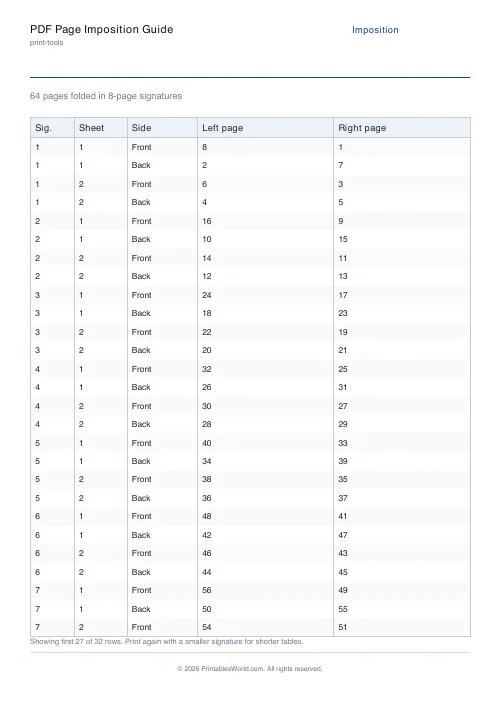
PDF Page Imposition Guide
Plan signature order for booklet printing. Page count and signature size in, table out.
Print Scaling Calculator
Scale any document to fit your chosen paper size.
Paper Sizes Calculator
Compare paper sizes and convert dimensions to pixels for accurate print design at any resolution.
Further reading