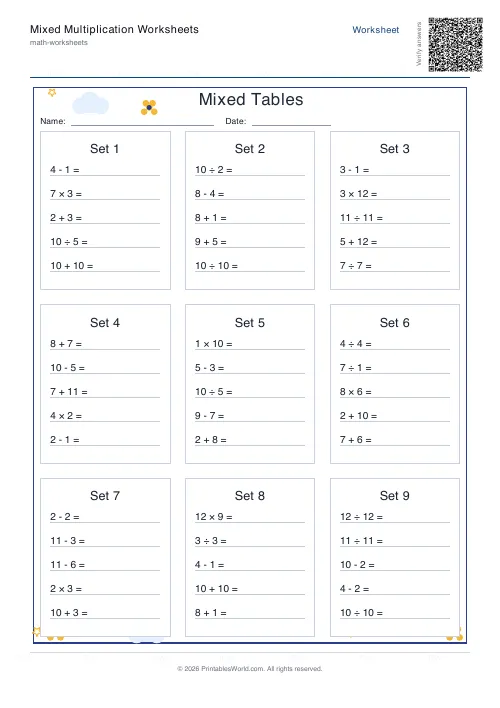
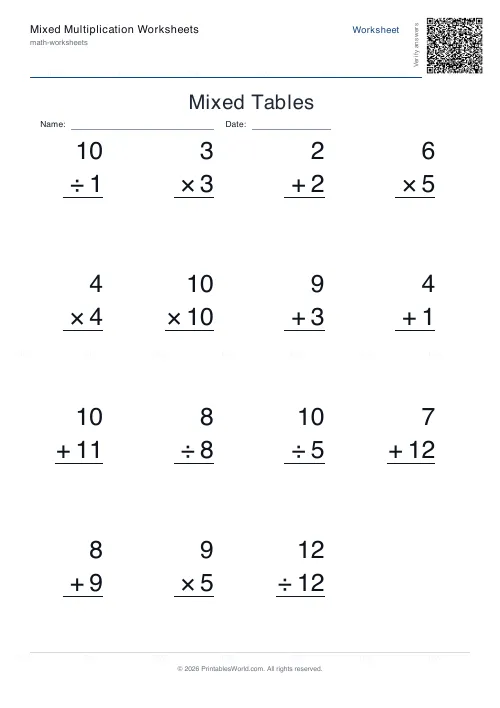
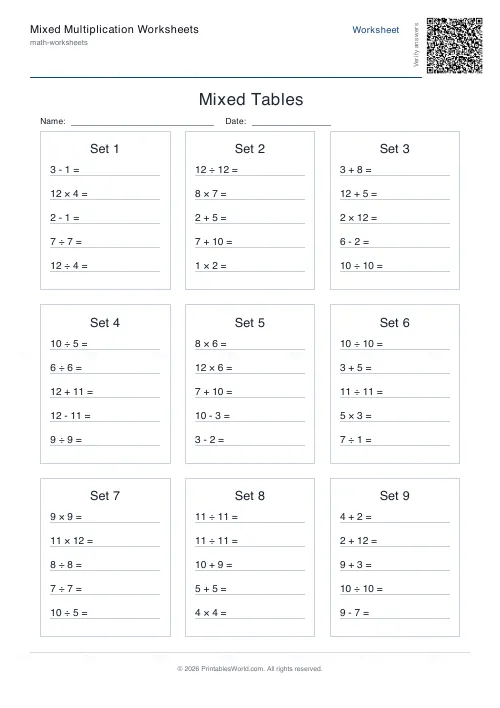
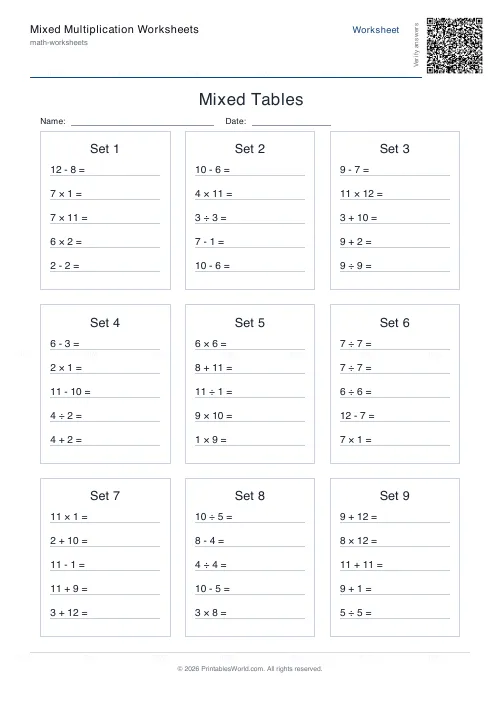
What this tool does
Multiplication drills that pull at random from across the tables rather than working through one at a time. Set the upper limit at 10 or 12 or leave it on random, decide whether zero is in the mix, choose a compact grid or a single large-print column, and print a blank sheet, an answer key, or both stacked into one PDF. Fifteen problems a sheet by default.
People also used
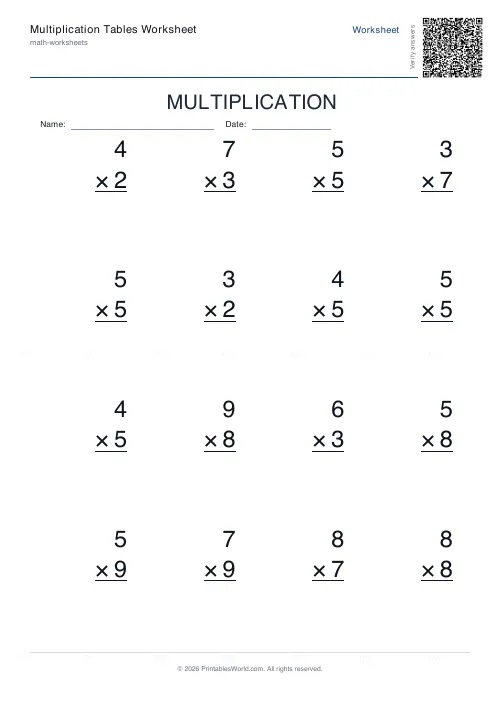
Multiplication Tables Worksheet
Full times tables 1-12. Choose specific tables or mixed. Grid or list format.
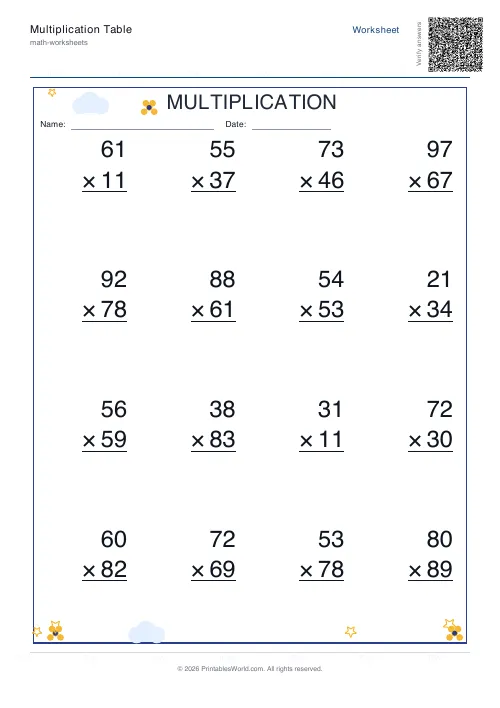
Multiplication Table Generator
Create free printable multiplication tables in table or line-by-line format with custom ranges and themes.
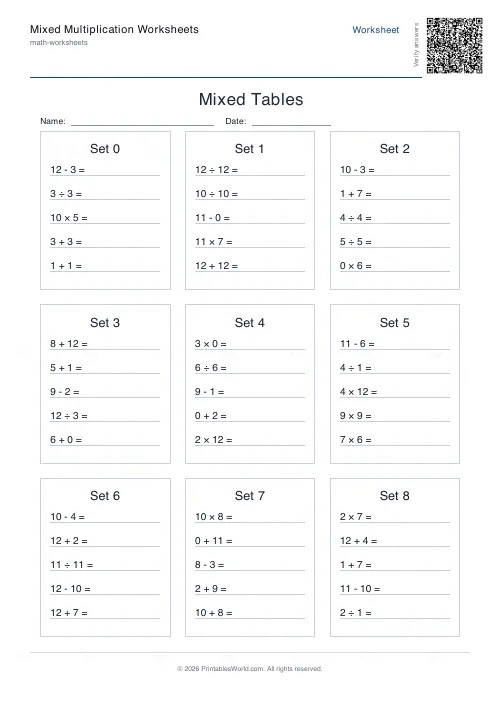
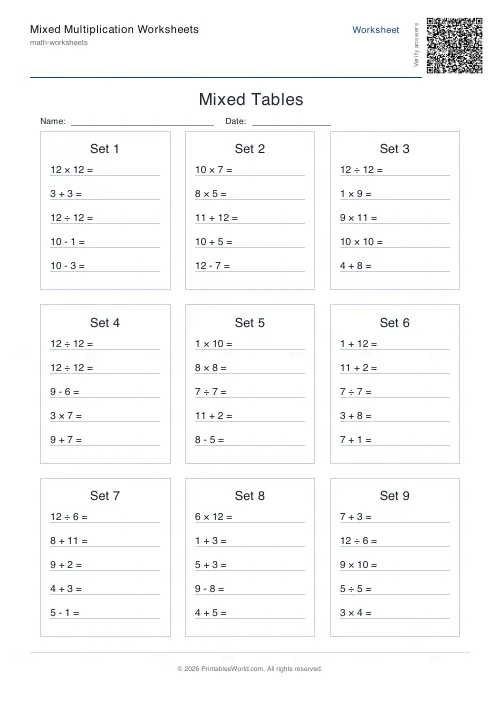
Mixed Tables Generator
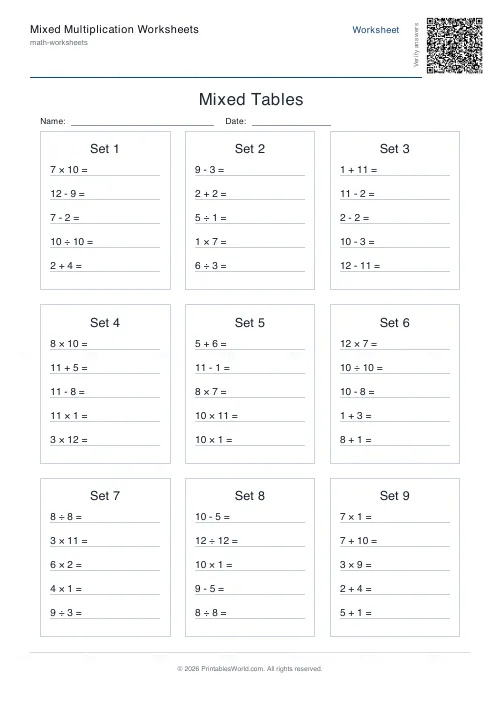
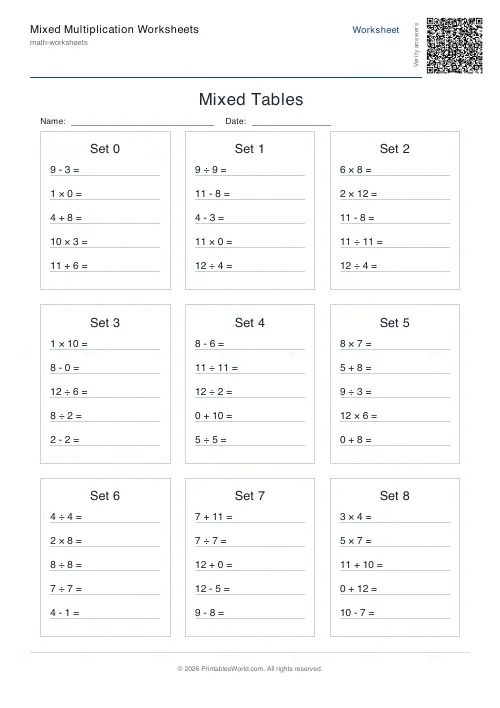
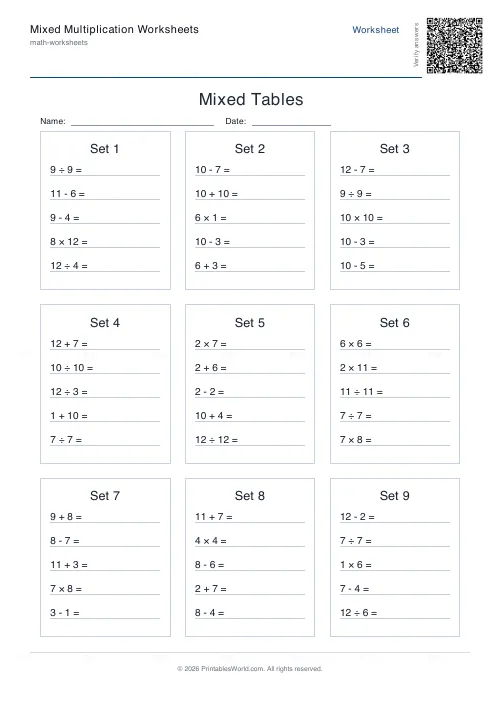
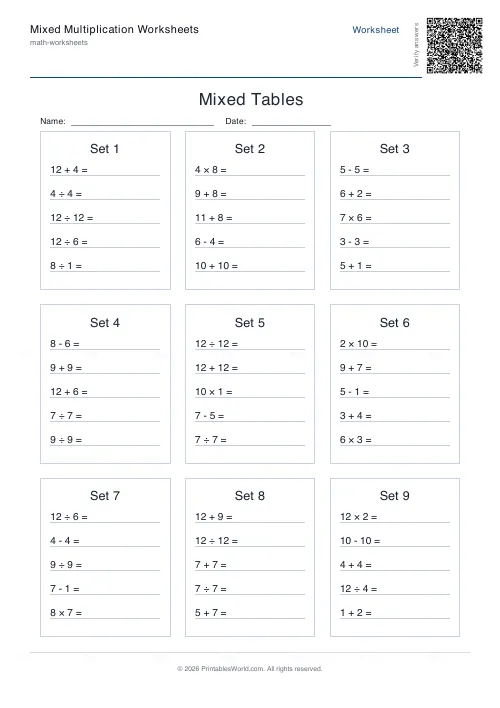
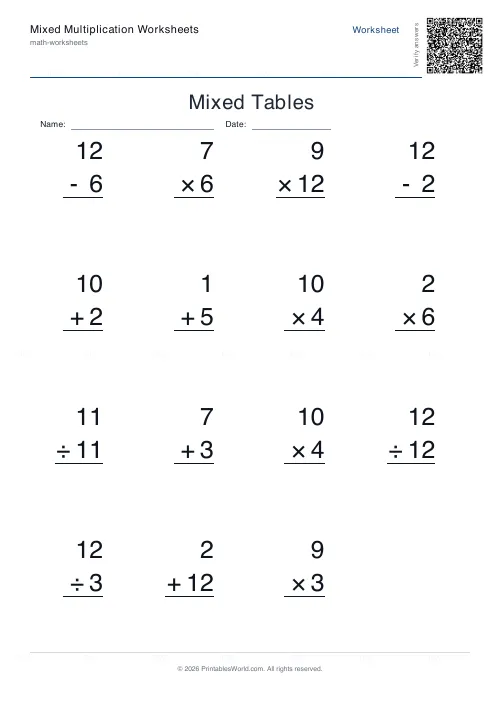
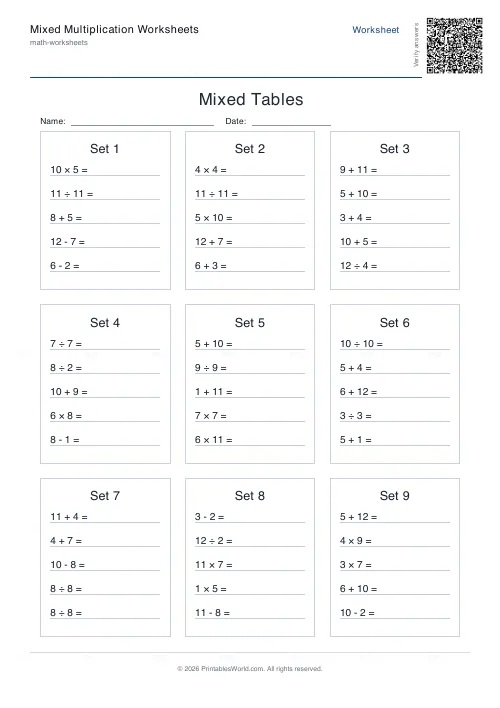
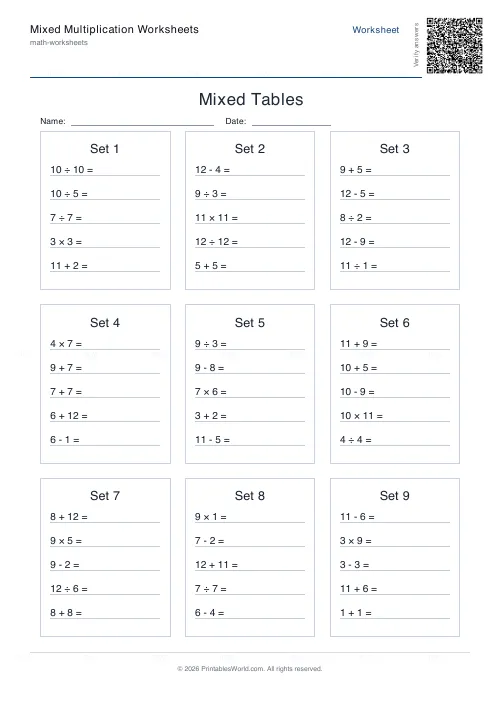
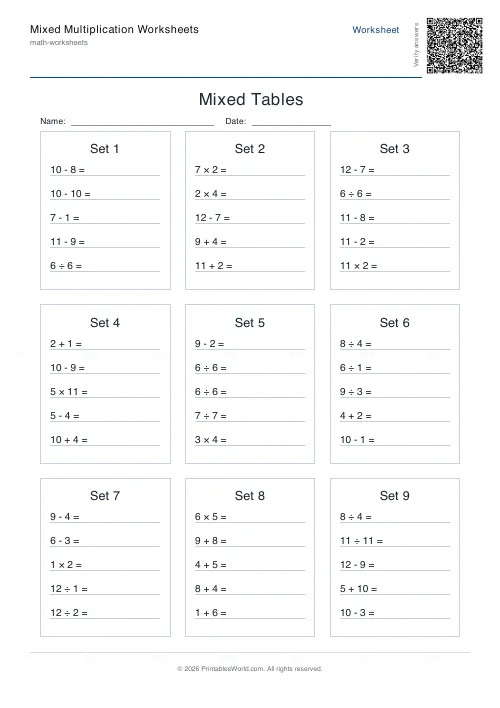
Print mixed-operations worksheets combining addition, subtraction, multiplication and division on one page.
Feedback
Spotted something off with this tool?
Questions shuffled across the tables, not down one
A single-table sheet is a list. Every answer on it is nine more than the last, and a child who has spotted that can complete the page without recalling a single fact.
These sheets interleave: 2 × 7, then 9 × 4, then 6 × 3, in no order at all. There is no positional cue to lean on, so the only way through is retrieval. That is harder, it feels slower, and it is what actually builds fluency.
Fifteen problems to a sheet unless you change it, in a compact grid or a single column.
Grid or vertical, and they are for different rooms
Grid packs problems into columns. This is quiet seat-work and timed drills, where the point is to get through as many as possible.
Vertical runs them down the page in one large-print column. That is the layout to project for a whole-class speed round, and it is also the one for a one-to-one session where you are talking through each question, because there is only ever one place to look.
The font size setting follows: auto fits whatever you asked for, and small or medium override it when you want a specific density.
The range setting, and the zero nobody expects
The upper limit is 10, or 12, or random. Twelve is the standard UK expectation and ten is the common US one, which is why both are here.
Zero is off by default and worth switching on at some point, because 0 × 7 is a fact children get wrong long after they are fluent everywhere else. It looks like a trick question and it is not.
One honest limitation: the range is an upper bound rather than a list. You cannot tick only the 3, 7 and 9 tables and exclude the rest. Setting the limit to 12 means the randomiser draws from everything up to twelve, and you accept the mix.
Which version comes out
Blank by default. Answers gives you the marking copy on its own, and Both puts the worksheet first with the key stacked behind it in one file, which is the setting for a lesson that ends with the class marking its own work.
The key lists results in the same order as the questions. No working, no method, just the numbers, because for tables recall there is no method to show.
A Friday fluency check
Grid style, limit at 12, zero off, thirty problems, output set to both, title typed in, name and date fields on.
Two pages come back. Twenty-eight copies of the first go to the class with eight minutes on the clock; the second stays on the desk until they finish, then goes on the board so everyone marks their own and circles what they missed.
The following Monday, generate again with identical settings. Every problem has reshuffled, so the same class can sit the same check without any of them remembering an answer from the sheet rather than from the fact.
Worth knowing
- Multiplication only. Nothing else appears on these sheets at all.
- Each generation is freshly randomised. Press generate again for different problems rather than printing the same PDF twice.
- Very high problem counts push onto a second page or shrink the font. Sixty on one sheet is possible and not pleasant to read.
- Table selection is an upper bound rather than a checklist, so you cannot exclude an individual table from the draw.
FAQs
Quick answers
Can I choose exactly which times tables appear in the mix?
You set an end number (e.g., tables up to 12) and the generator pulls random problems from that range. The tool doesn't yet offer per-table checkboxes, so if you want only 3, 7, and 9, you'll need to set the range to 1–12 and accept that other tables may appear, or generate multiple sheets and cherry-pick the questions you need.
How many problems fit on one page?
In grid (tables) layout, 20–40 problems typically fit on a single A4 or US Letter page, depending on font size. Vertical layout can hold 30–50 problems by stacking them in a single column. If you request more, the generator either shrinks the font (when set to auto) or flows onto a second page.
Will I get the same questions if I print the PDF twice?
Yes. The PDF itself is fixed once generated. To get a fresh set of random problems, click the generate button again. Each new generation shuffles the question pool, so you can create unlimited unique worksheets from the same settings.
Can I print both the blank worksheet and the answer key in one go?
Yes. Select <strong>both</strong> as the output type and the PDF will contain the blank worksheet on the first page(s) and the answer key immediately after. Print the whole document or select specific pages in your print dialog.
What does the 'include zero' option do?
When ticked, the generator adds problems like 0×5 and 7×0 into the mix. These are trivial (answer is always zero) but useful for absolute beginners or for reinforcing the zero property of multiplication.
Can I add a custom title or student name field?
Yes. The title field lets you type any heading ("Week 3 Drill," "Tables 2–5 Practice," etc.), and the name/date toggle adds blank lines at the top of the worksheet where students write their name and the date by hand.
Which layout should I choose, grid or vertical?
Grid (tables) layout arranges problems in multiple columns, saving paper and fitting more questions per page; it's ideal for timed drills and classroom handouts. Vertical layout stacks problems in a single column with larger spacing, making it easier to read during one-on-one tutoring or for projection on a whiteboard.
Related tools
Multiplication Tables Worksheet
Full times tables 1-12. Choose specific tables or mixed. Grid or list format.
Multiplication Table Generator
Create free printable multiplication tables in table or line-by-line format with custom ranges and themes.
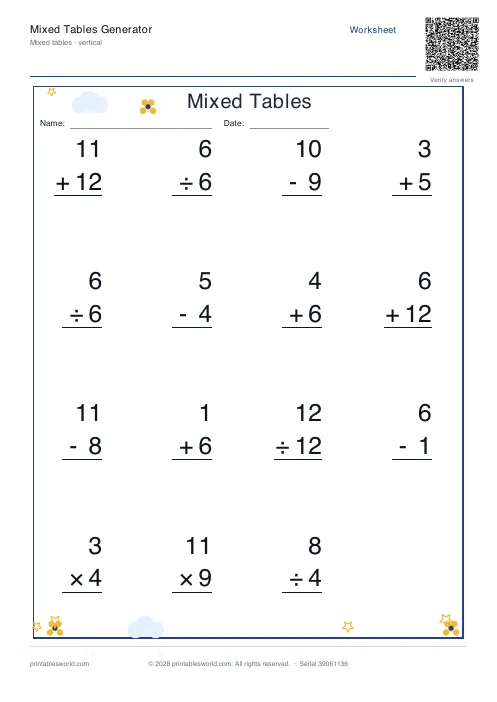
Mixed Tables Generator
Print mixed-operations worksheets combining addition, subtraction, multiplication and division on one page.
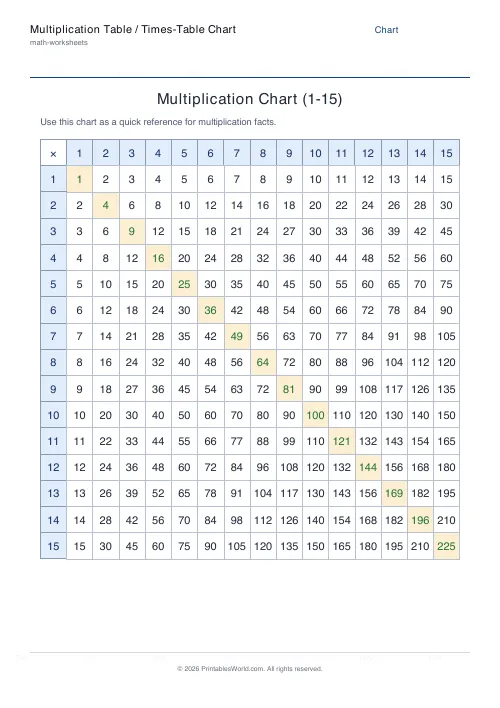
Multiplication Table / Times-Table Chart
A clean, printable times-table chart from 1 to 15.
Further reading
Math & Numeracy
How to help a child who's stuck on times tables
A simple two week plan to help child with times tables, using short daily practice and free printable multiplication grids you can customise and print.
7 min read
Math Worksheets
How to read and interpret bar charts with kids
Reading a bar chart is easy; interpreting one is not. Four questions turn a chart from something children decode into something they can reason about.
4 min read
Math Worksheets
Understanding BODMAS and PEMDAS: order of operations explained
BODMAS and PEMDAS describe the same rule in different words. The trouble is that both hide two facts the acronym cannot express. Which is where nearly every mistake comes from.
5 min read
More like this
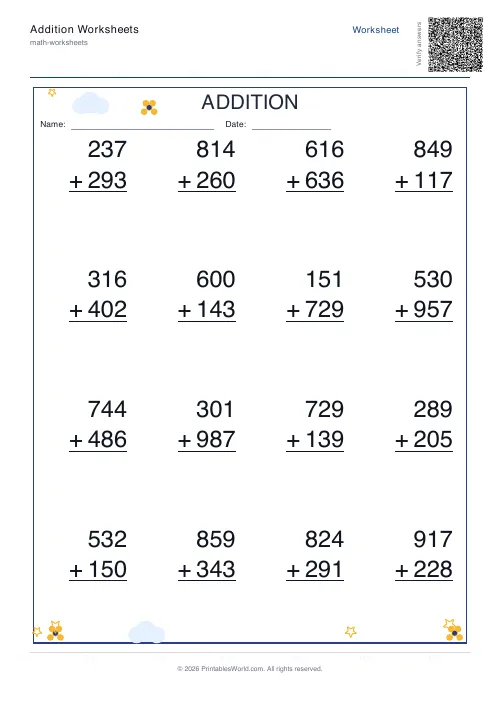 Addition Worksheets Generator
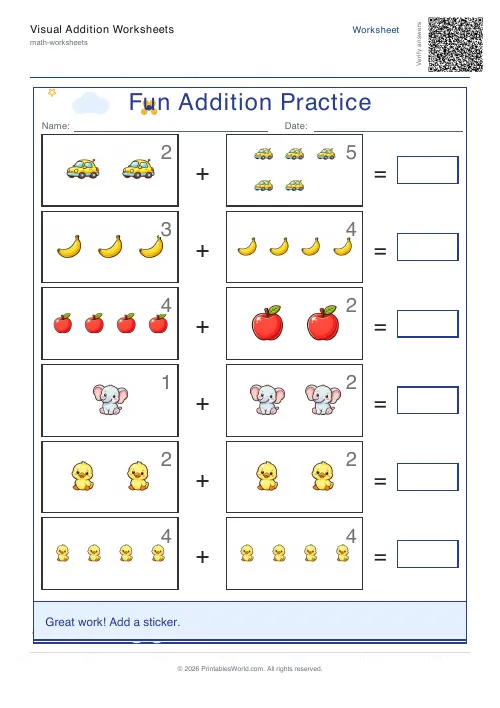 Visual Addition Worksheets Generator
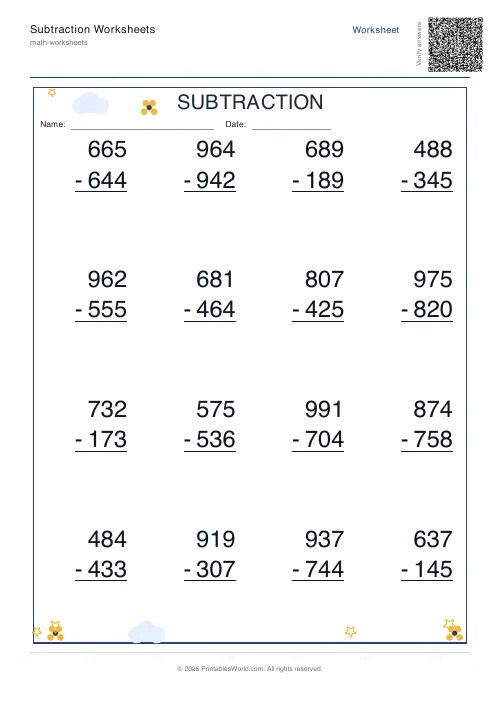 Subtraction Worksheets Generator
- Multiplication Table Generator
- Mixed Tables Generator
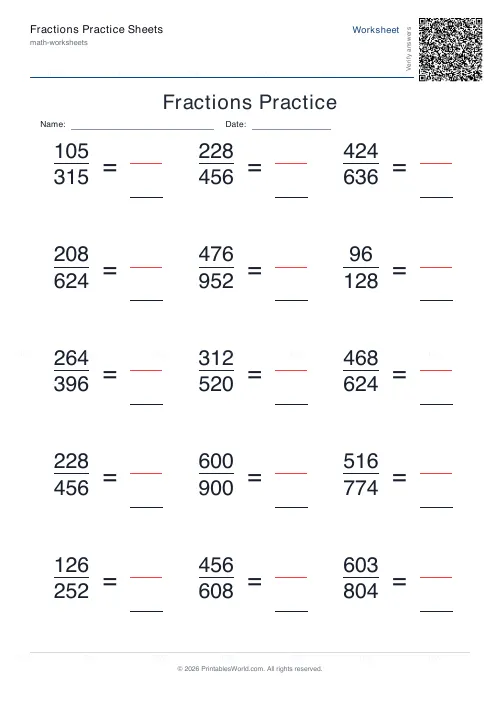 Fractions Practice Sheets Generator
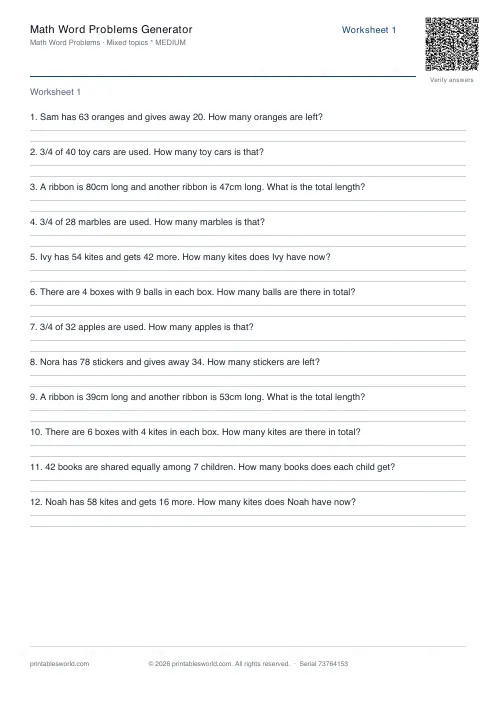 Math Word Problems Generator
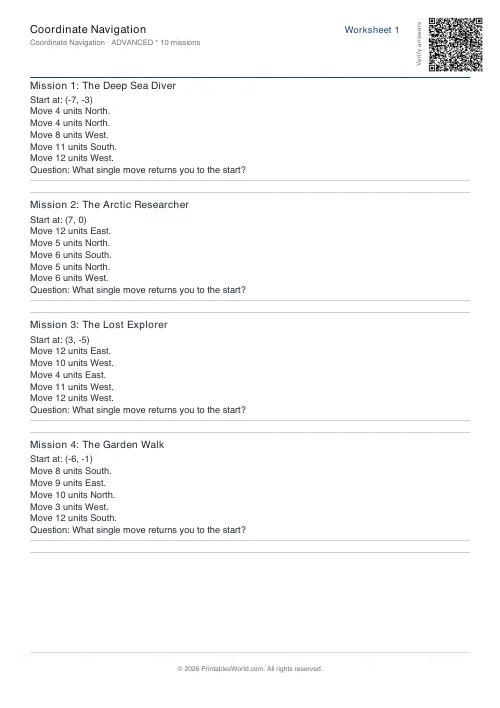 Coordinate Navigation Generator
- Multiplication Tables Worksheet
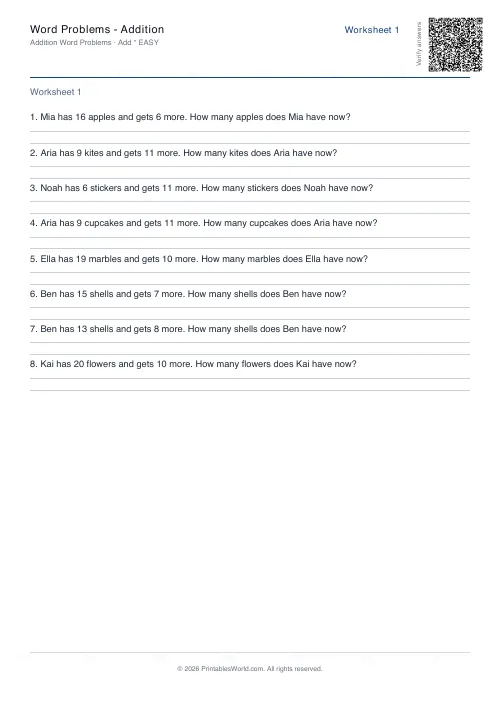 Word Problems: Addition
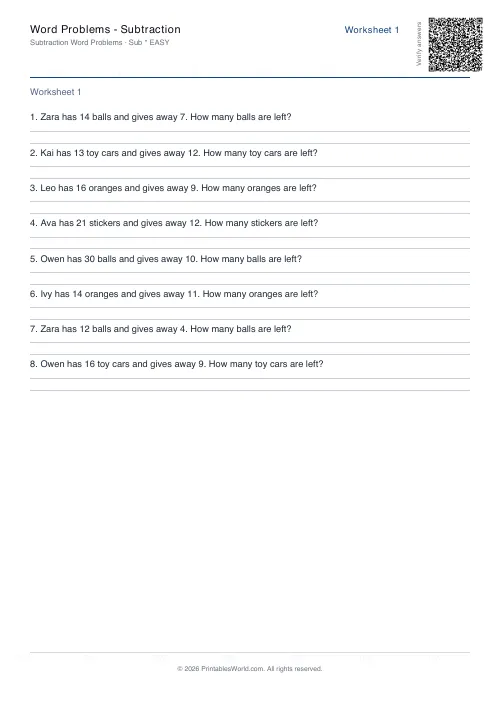 Word Problems: Subtraction
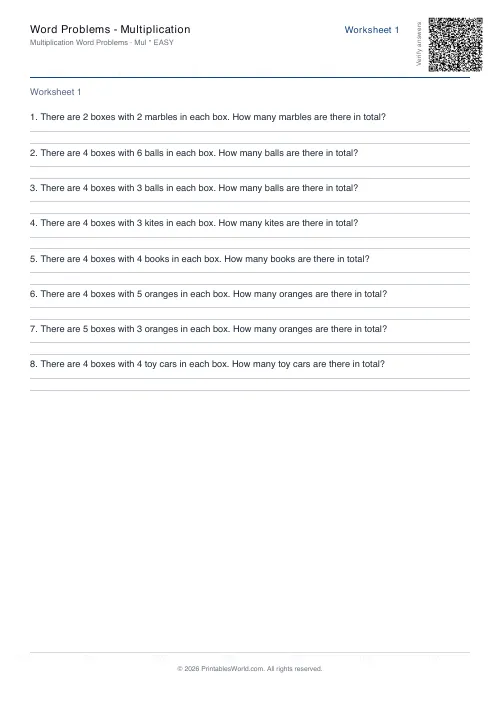 Word Problems: Multiplication
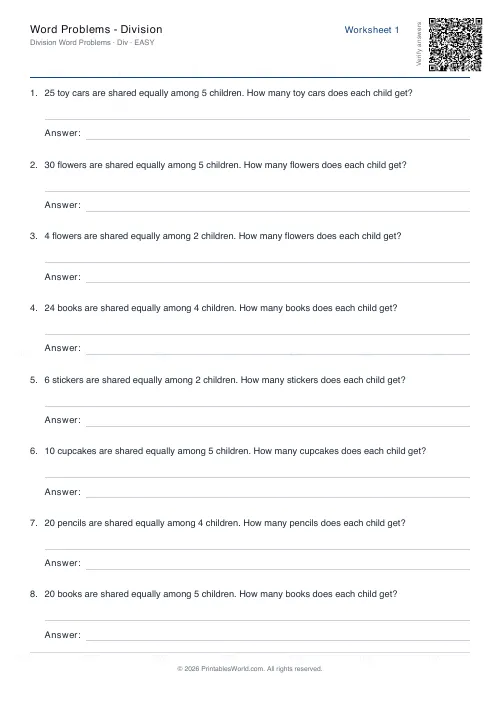 Word Problems: Division
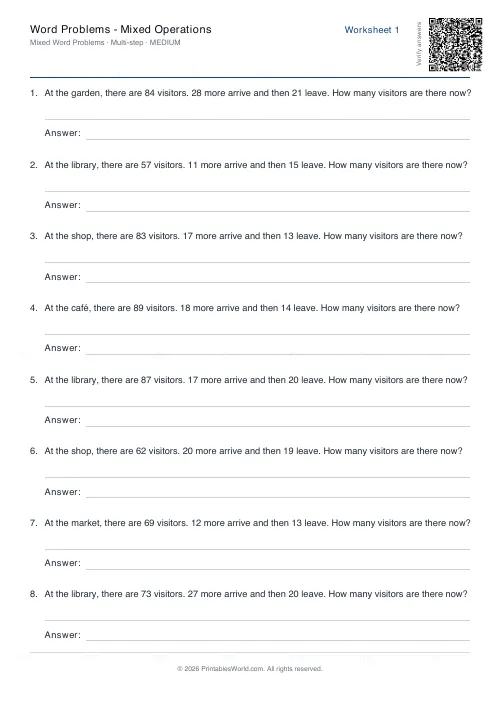 Word Problems: Mixed Operations