What this tool does
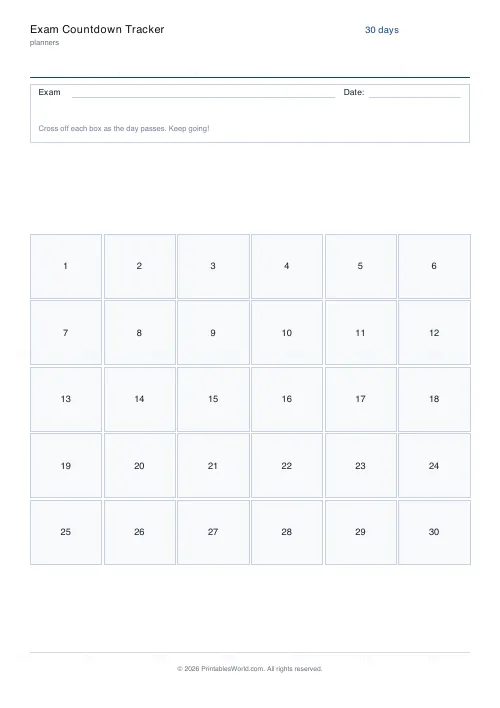
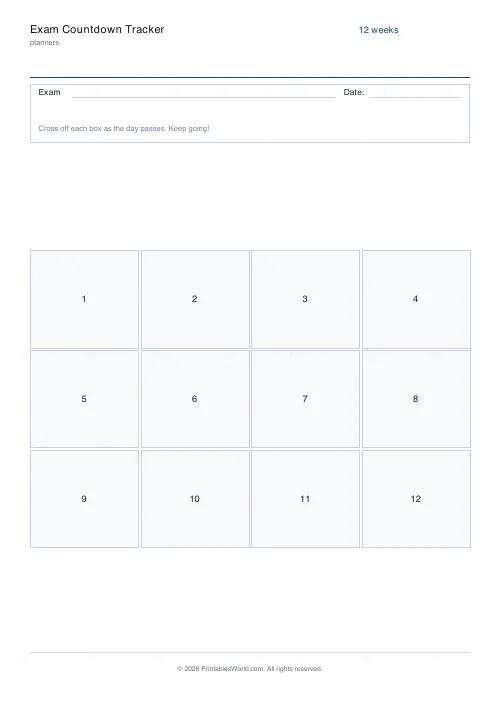
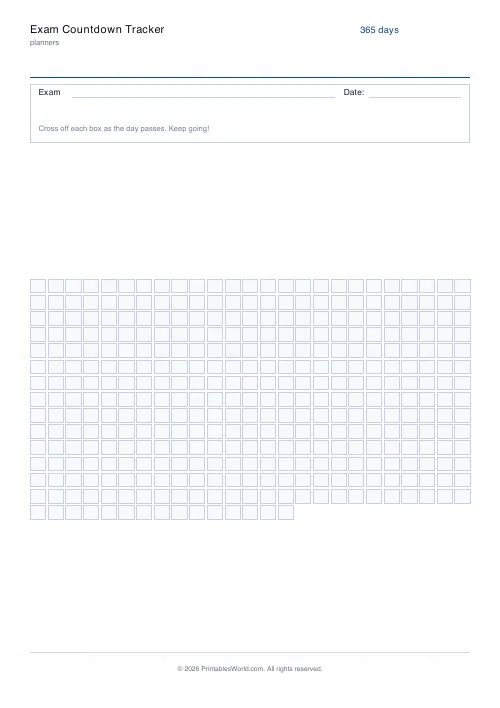
A one-page grid of boxes you cross off as the exam approaches. Thirty numbered squares for the final month, twelve blocks for a term-length run-in, or 365 tiny boxes for something a year out. Your exam name and date print across the top. Nothing else on the sheet, because nothing else is needed.
People also used
Feedback
Spotted something off with this tool?
Cross off a box, every morning
A grid of numbered squares with your exam name and date at the top. Each morning you cross one off, and the shrinking grid tells you where you are without you having to work anything out.
Three layouts. Thirty days gives spacious numbered squares for the final month, which is the version that goes above a desk. Twelve weeks trades days for weekly blocks and suits a term-long revision cycle without turning into a wall of tiny boxes. Year packs 365 of them into a dense grid, for a certification or an entrance exam that is genuinely months away.
Why paper beats a countdown app
A digital countdown scrolls past. You see the number, you feel briefly bad, you keep scrolling.
A grid pinned to a wall sits in peripheral vision all day, which is a different kind of pressure and a more useful one, because it never demands attention and never stops being visible. The crossing-off itself does something too: it is a small daily acknowledgement that another day went, and that acknowledgement is harder to make dishonestly with a pen in your hand than it is by dismissing a notification.
How the three modes get used
Thirty days handed out to a whole class at the start of revision week gives everyone the same timeline and something to talk about. On day one they cross off box 30, the next morning box 29, and by exam day the sheet is a completed record.
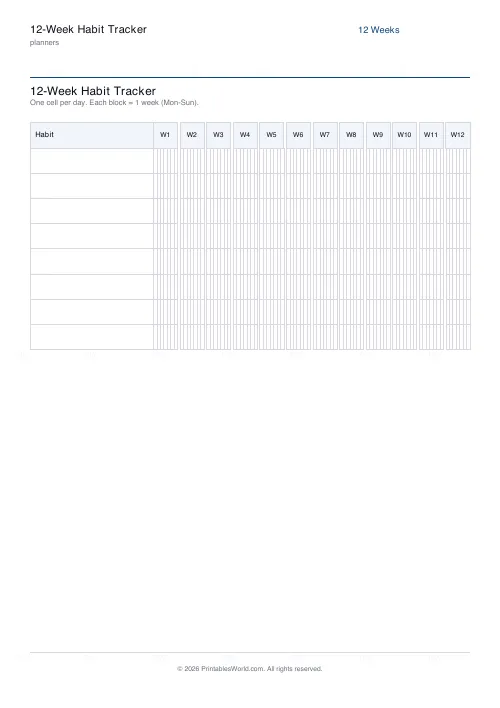
Twelve weeks works better for a student managing their own schedule, because a week is the unit that revision actually gets planned in. Cross one off on a Sunday evening and use the moment to look at what is left and reorder the topics.
Year is for a distant target, and its real job is making the distance feel finite. Three hundred and sixty-five boxes is a lot, but it is a countable lot, and that is the difference between a goal that feels far away and one that feels imaginary.
Filling it in
- Type the exam name. Maths GCSE, or Step 1, or whatever certification you are working towards.
- Type the date. It prints exactly as you write it, so use whatever format you read fastest.
- Pick the mode by how far out you are, not by how many boxes you want.
- Rename the title if Exam Countdown is not what this is. Revision Tracker, or Test Prep, or the subject.
- Download, print, stick it somewhere you pass rather than somewhere you sit.
What it deliberately does not do
- It does not count the days between today and your exam date. You pick the mode, which means you can start the thirty-day sheet whenever you decide to, rather than when a calculation says to.
- Boxes are numbered but not dated, and no day names are printed. Cross them off in whatever order suits you.
- The twelve-week mode labels its blocks Week 1 to Week 12 rather than by calendar date.
- One countdown per PDF. Two exams means two sheets.
- Portrait only, and once it is printed it cannot be edited. If the date moves, print another.
FAQs
Quick answers
Which mode should I pick if my exam is two months away?
Use the 12-week mode. Two months is roughly eight weeks, so you'll have four spare blocks at the start. Cross those off immediately or leave them blank. Alternatively, generate a 30-day sheet four weeks before the exam and switch to daily tracking then.
Can I print multiple copies with different exam names?
Yes. Change the exam name and date in the input fields, click Generate PDF again, and you'll get a fresh file. Save or print each PDF separately for different subjects or students.
Do the boxes print with checkboxes or are they blank?
The boxes are blank rectangles with a light border. You cross them off by hand with a pen, marker, or highlighter. The physical act of marking is part of the countdown ritual.
What if my exam is more than a year away?
The year mode covers 365 boxes. For anything longer, print a second year-mode sheet and tape them together, or generate a new countdown every twelve months until the exam arrives.
Can I start crossing off boxes from the bottom or middle instead of the top?
Yes. The numbers help you track progress, but you can cross off boxes in any pattern you like. Some students prefer working backwards from box 1, others start at 30 and count down.
Does the tool automatically fill in today's date?
No. You type the exam date manually, and the generator prints it exactly as you enter it. The countdown does not sync with your computer's calendar. You decide when to start crossing off boxes.
Can I edit the PDF after I download it?
The PDF is not form-fillable. If you need to change the exam name or date, go back to the tool, update the fields, and generate a new file.
Related tools
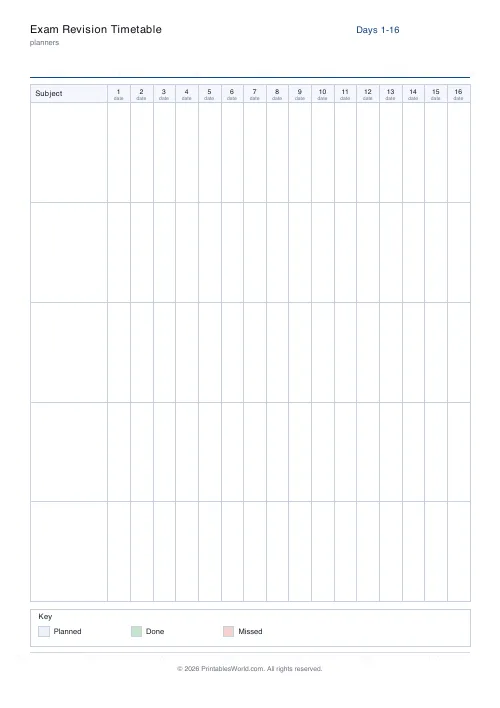
Exam Revision Timetable
Subjects × dates grid with tick-boxes to track revision sessions.
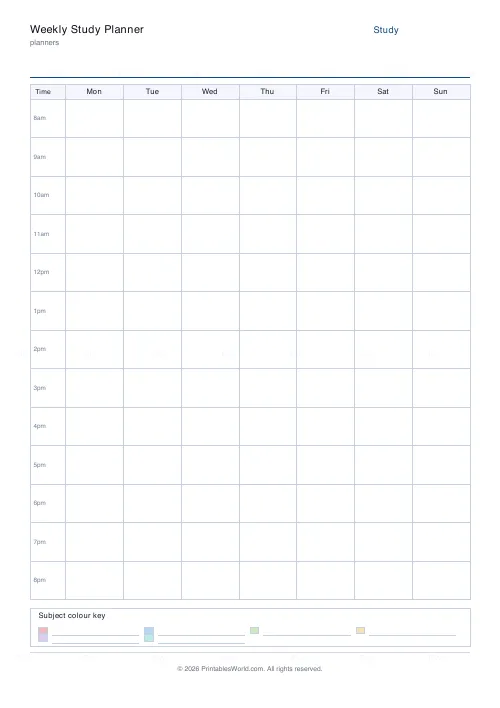
Weekly Study Planner
Weekly 7-day × hourly study timetable with a subject colour-code legend.
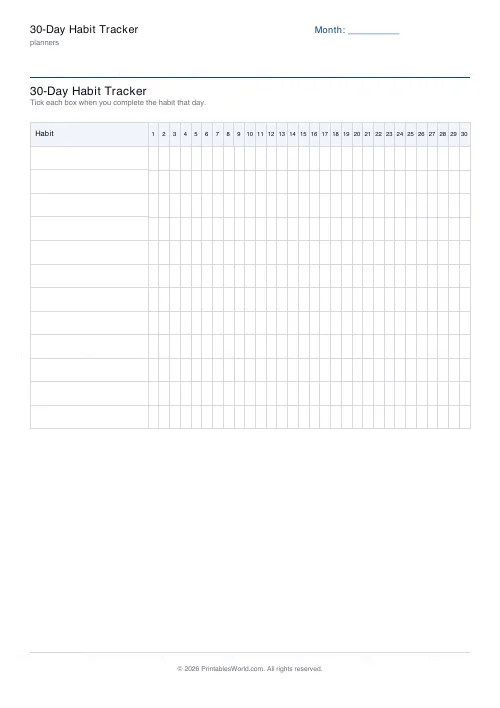
30-Day Habit Tracker
A printable 30-day habit grid to tick off every morning. One row per habit.
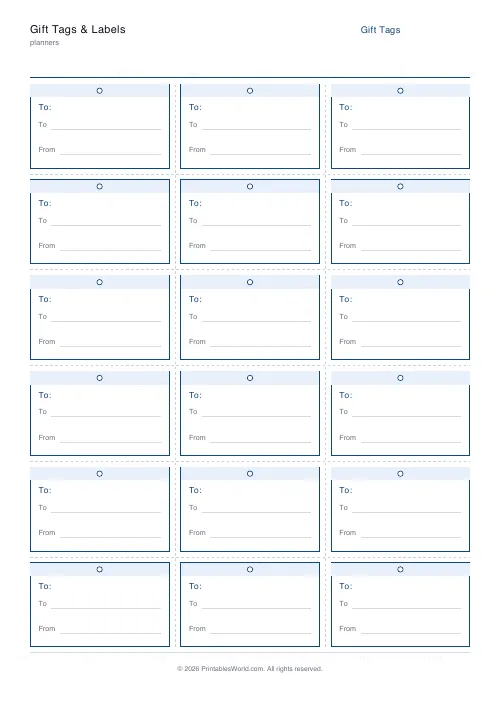
Gift Tags & Labels Generator
Printable gift tags and labels you can cut out, write on and tie to any present.
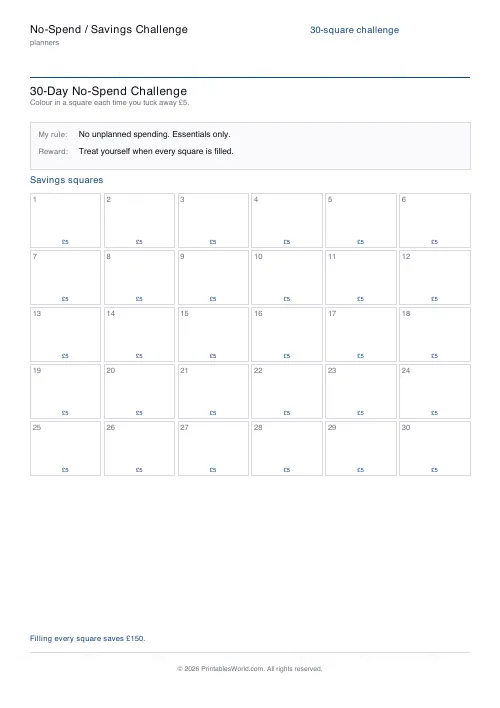
No-Spend / Savings Challenge
A printable grid of colour-in squares for a no-spend streak or a save-as-you-go challenge.
Further reading
Planners
Study planning for exams: a student's complete guide
A revision timetable is only as good as what goes in the slots. Here is how to build one backwards from the exam date, and which study methods the evidence actually supports.
5 min read
Planners
How to pay off debt faster with a payoff tracker
One method costs less; the other is easier to stick to. Here is how to choose between them honestly, and why a visual tracker changes the odds either way.
5 min read
Planners
Meal planning 101: save time and money every week
A weekly meal plan saves money mainly by changing how you shop. Here is a thirty-minute method, the shortcuts that keep it going, and the mistake that ends most plans in week three.
5 min read